
Before installing the Worksnaps application, you must first ensure that Oracle Java is installed on your Mac machine.
1. Install Oracle Java
1.1 Download Oracle Java
Open your browser and go to the Oracle Java download page:
https://www.oracle.com/java/technologies/downloads/
1.2 Select the Latest Java Version
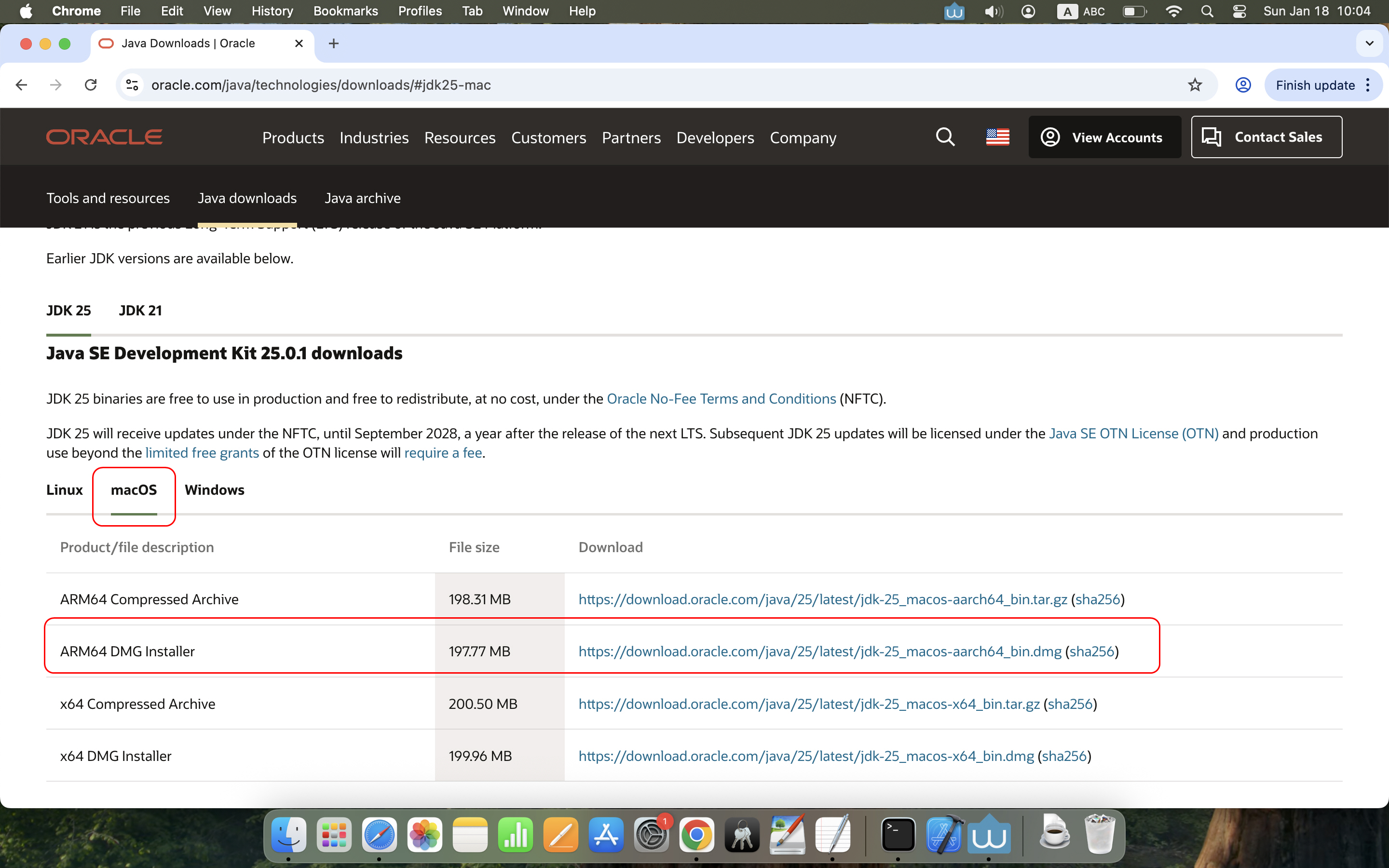
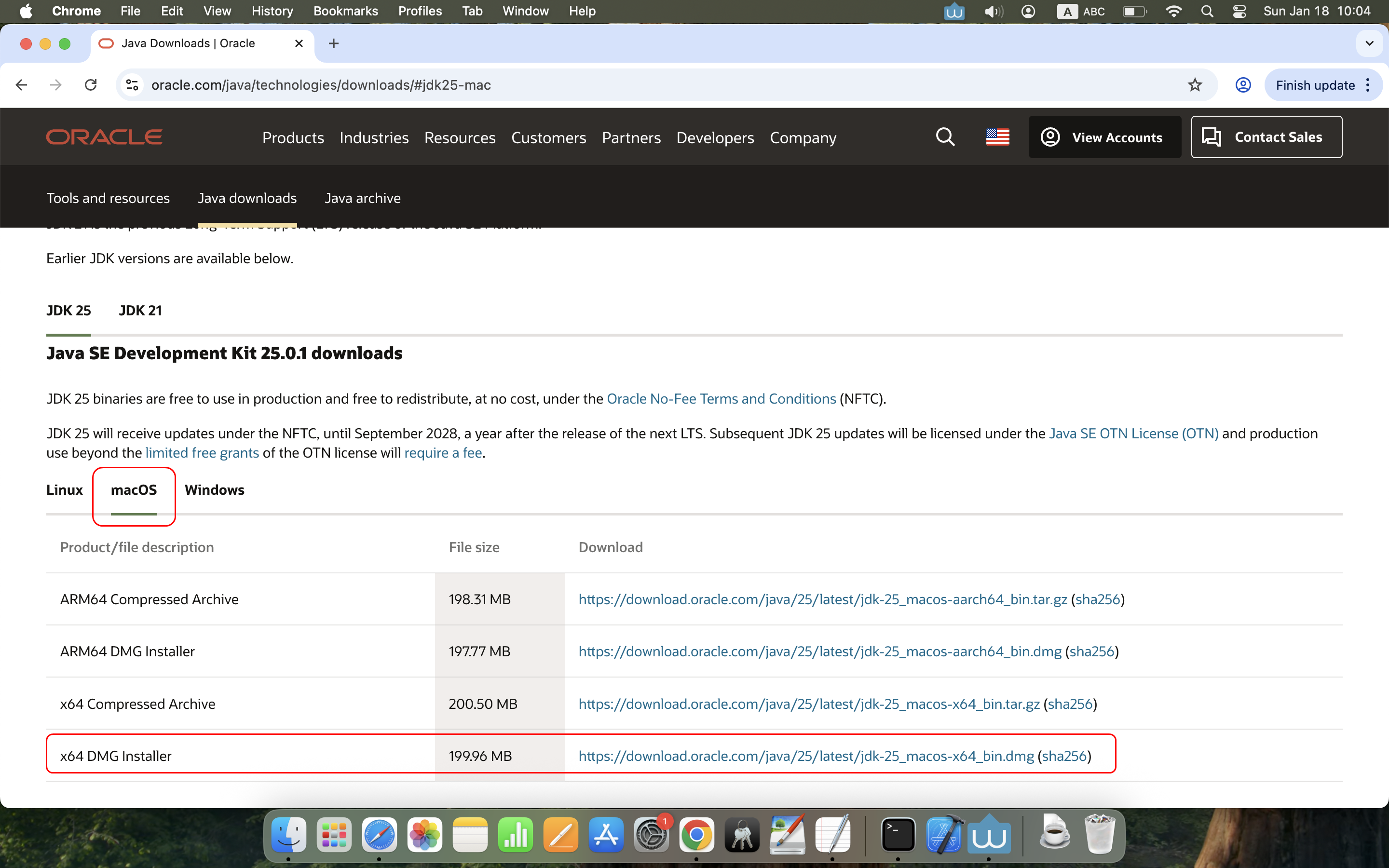
After opening the Oracle Java download page, choose the latest Java version. In the example below, the latest version is JDK 25, then switch to the macOS subpage.
1.3 Choose the Installer Matching Your Mac’s Chip Architecture (ARM vs. Intel)
If your Mac has an ARM (Apple Silicon) chip (typical for Macs produced after 2019), choose the “ARM64 DMG Installer”.
If your Mac has an Intel chip (typical for Macs produced before 2019), choose the “x64 DMG Installer”.
1.4 Install After Download
Once the download is complete, follow the installer prompts to install Oracle Java.
1.5 Verify Your Installed Java Version
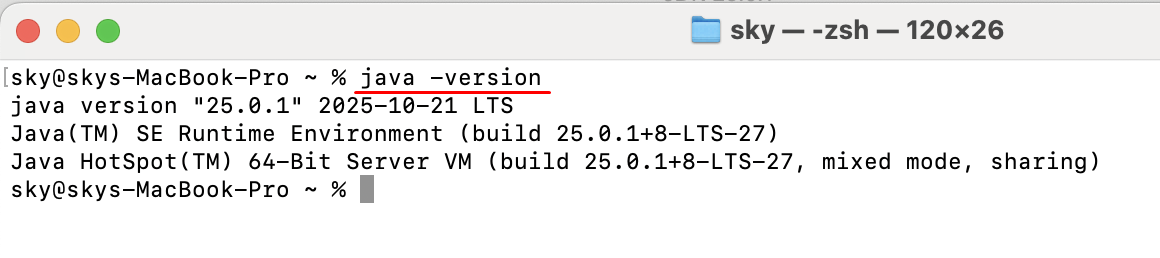
Open Terminal and type:
java -version
You will see the current installed Java version — in the example: Java 25.0.1.
2. Install Worksnaps
2.1 Download the Worksnaps Installer and Install
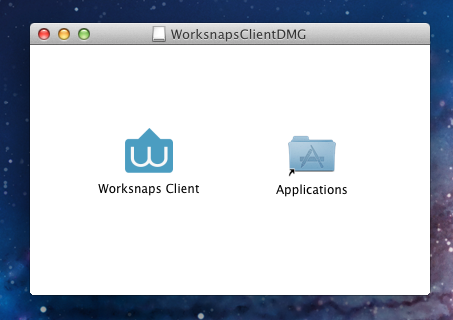
The Worksnaps installer is provided in separate versions for ARM and Intel. Download the version that matches your Mac. Download the one that matches your chip architecture from https://www.worksnaps.com/www/download.shtml, double-click the downloaded package, then drag the Worksnaps Client icon into the Applications folder.
2.2 Run Worksnaps
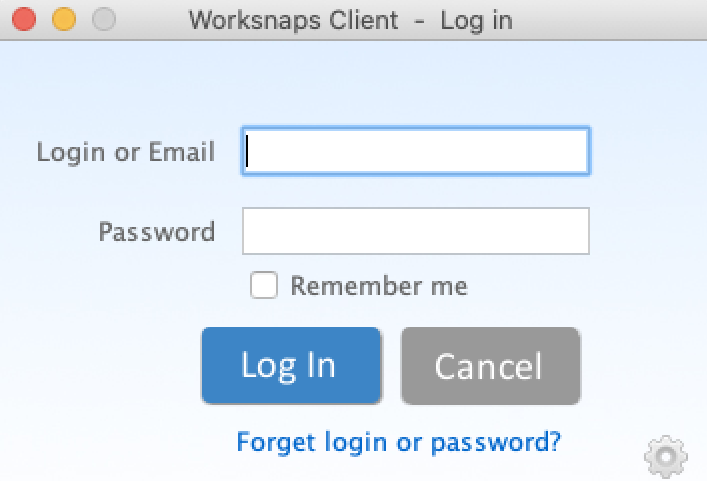
You can now launch Worksnaps Client from Applications, if you see the login window shown below, then Worksnaps is running properly.
3. Screen Recording Permissions
3.1 Notice the "Screen Recording" Prompt.
When Worksnaps runs for a while (within a few minutes), a screenshot prompt may appear. Because of macOS security policies (starting with macOS 10.15), you must grant screen recording permission; otherwise the screenshots will only show the desktop background (no actual content). Click “Open System Preferences.”
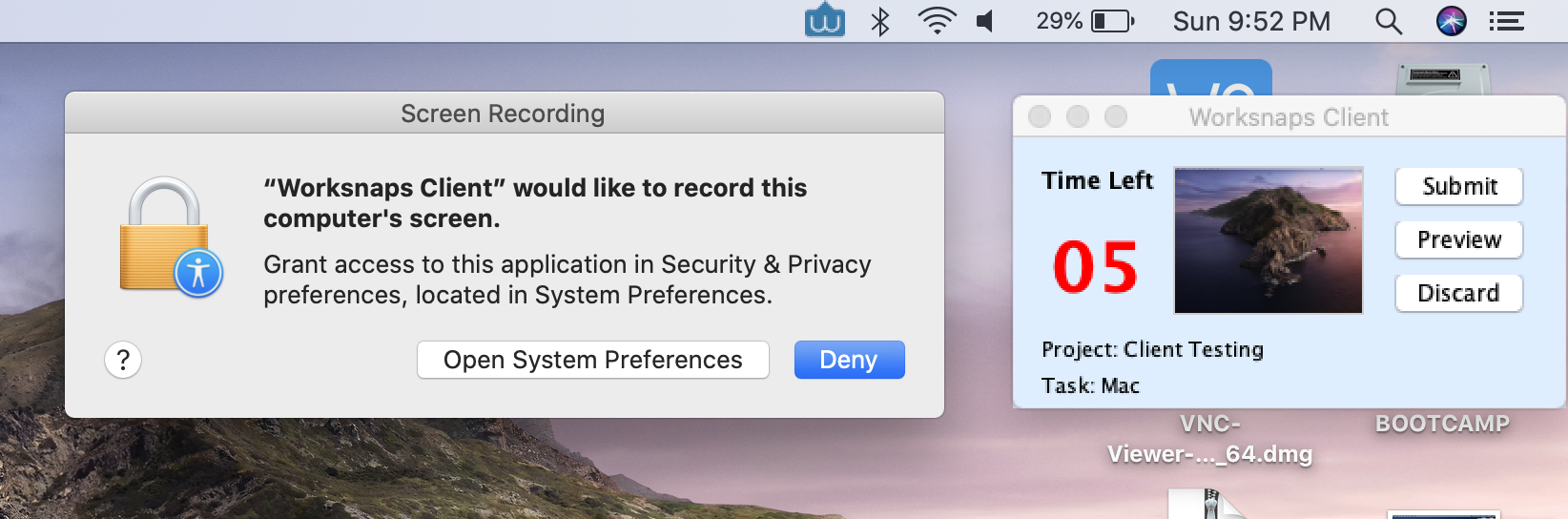
3.2 Grant Permission
Navigate to System Preferences → Privacy & Security → Screen & System Audio Recording, check the box for Worksnaps Client.
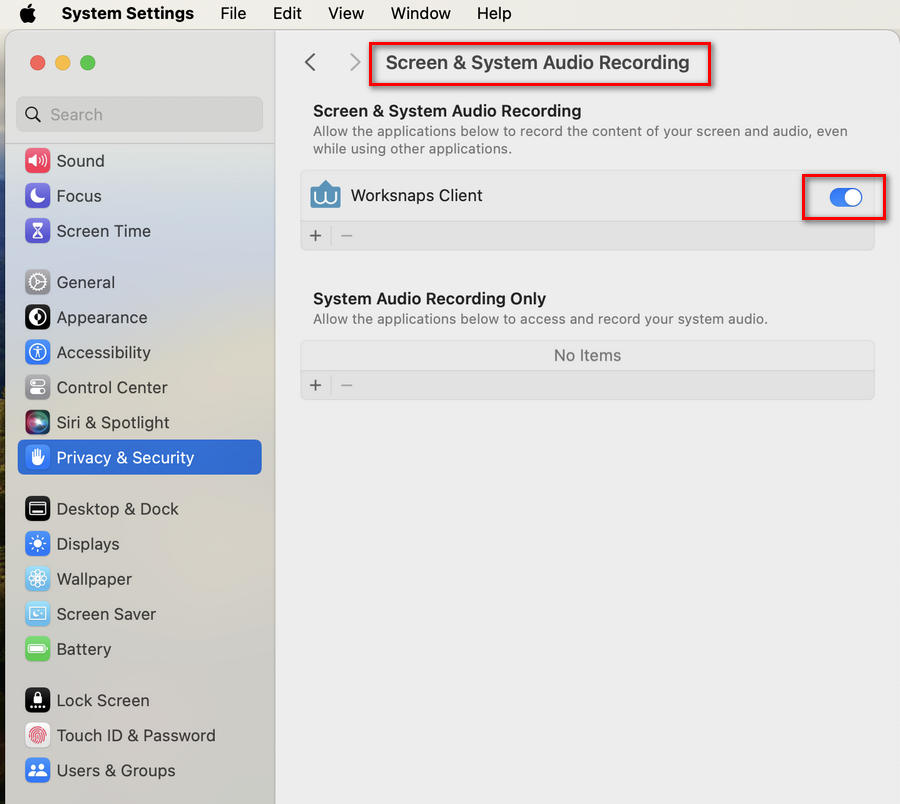
If you click “Deny” instead of “OK” during the prompt, Worksnaps will still work normally, but only the desktop background will be captured until you manually go to "Privacy & Settings" to turn on the "Screen & System Audio Recording" for Worksnaps Client.
4. Accessibility (Auxiliary) Settings
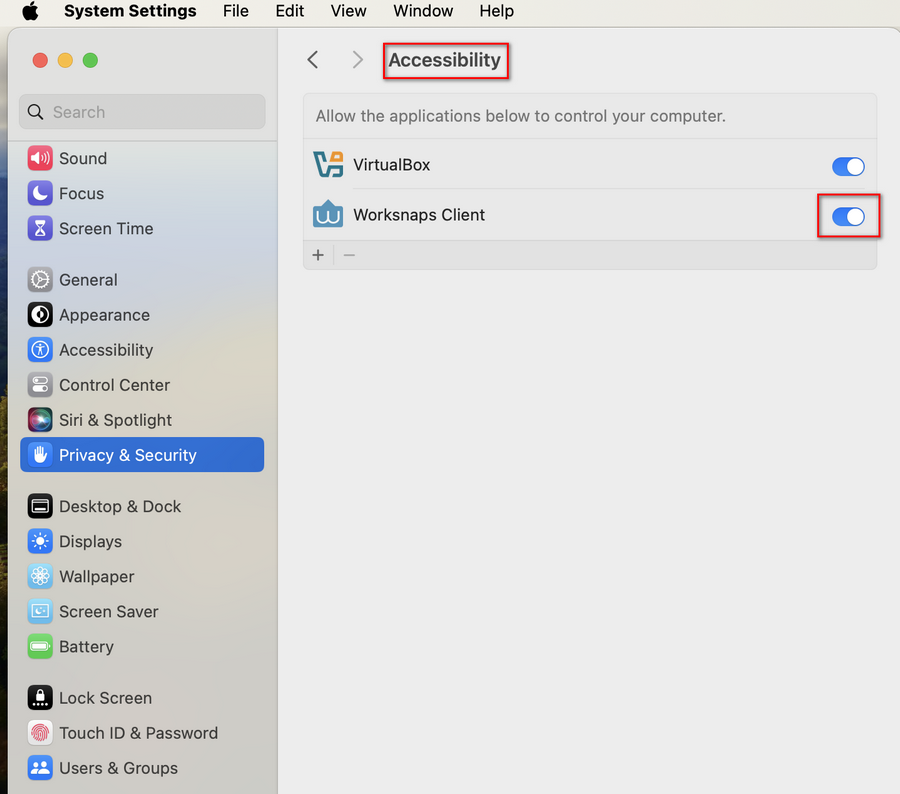
Worksnaps tracks keyboard and mouse events to determine work status. On macOS, you must manually allow this in Accessibility settings; otherwise Worksnaps can only capture mouse events (not keyboard events). Go to System Preferences → Privacy & Security → Accessibility, and check Worksnaps Client.
5. Camera Settings (Optional)
If you turn on the option to send webcam images in WorksnapsC Client, macOS will show a permission prompt when the app first tries to use your camera (on macOS 10.15 and later). Click “OK” to grant the permission.
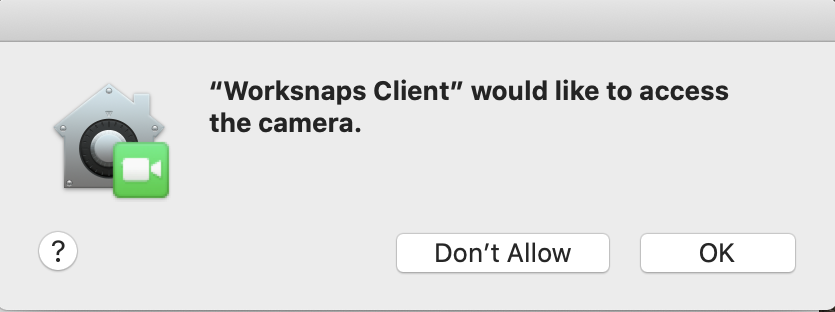
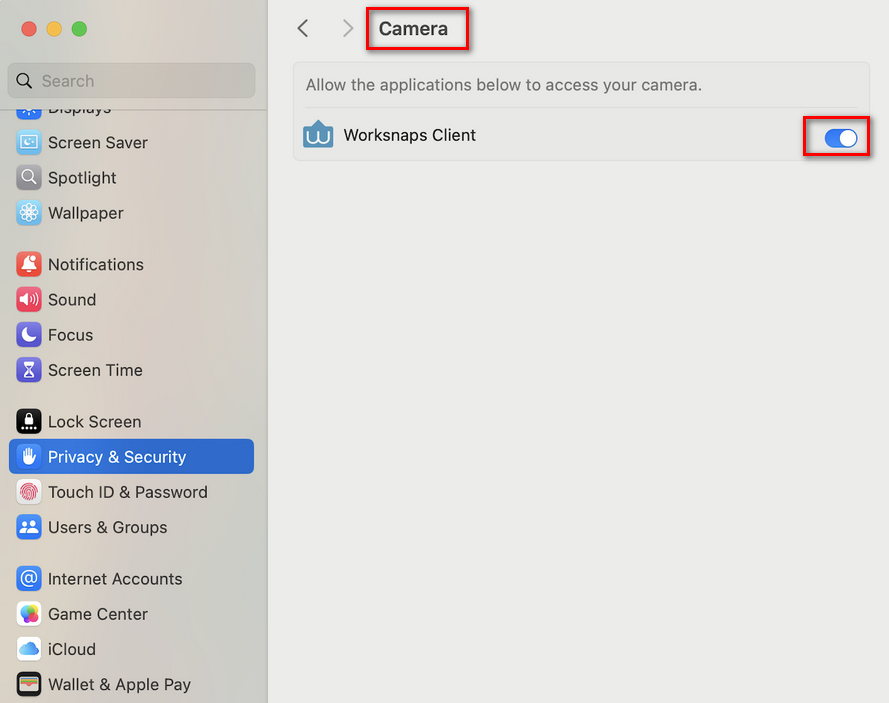
If you clicked “Don’t Allow,” you can manually enable this permission via System Preferences → Privacy & Security → Camera, and turn on the option for Worksnaps Client.
6. Troubleshooting
If you encounter one of the following issues, please follow the instruction to correct it.
Webcam only captures a black image:
This can happen because the camera permission wasn’t fully established on first use. Wait a bit longer; usually the second captured image will be correct.
Screen captures still only show the background even after screen recording permission is granted:
Reset the screen recording permission by running the following command in a Terminal:
tccutil reset ScreenCaptureWait about 10 minutes for camera prompt to appear as described in #3 above, and then grant permission.
Webcam doesn’t capture actual photos despite having camera permission:
Reset the camera permission by running the following command in a Terminal:
tccutil reset CameraWait about 10 minutes for camera prompt to appear as described in #5 above, and then grant permission.