Prerequisites
1. This package is for PopOS 24.04 or above using Wayland + GNOME desktop
2. If KDE desktop is used, this package does not work. (We are still working on compatibility with KDE desktop now.)
Installation Steps
1.Install GNOME session packages and reboot (If you are not using GNOME)
sudo apt install gnome-shell gnome-session gdm3 -y
sudo apt install gnome-shell-extensions -y
sudo apt install gnome-screenshot -y
sudo apt install default-jre -y
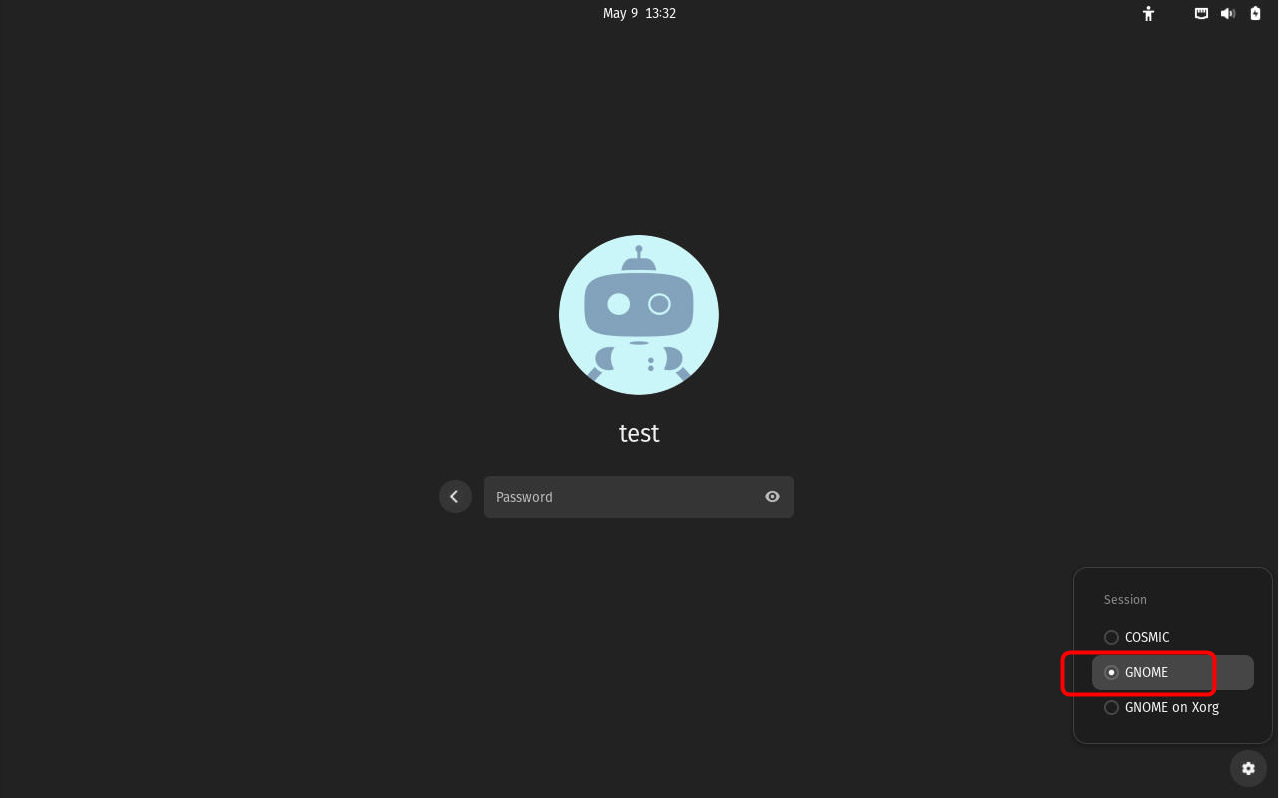
2. Login Pop!_OS with GNOME session
3. Download WSClient package and install
https://s3.amazonaws.com/worksnaps-download/WSClient-install-linux-wayland-1.1.20260510.zip
3.1 Please unzip the zip package, you will see a directory WSClient-Install.
3.2 Go into directory WSClient-Install, then run the command ./install.sh script to install.
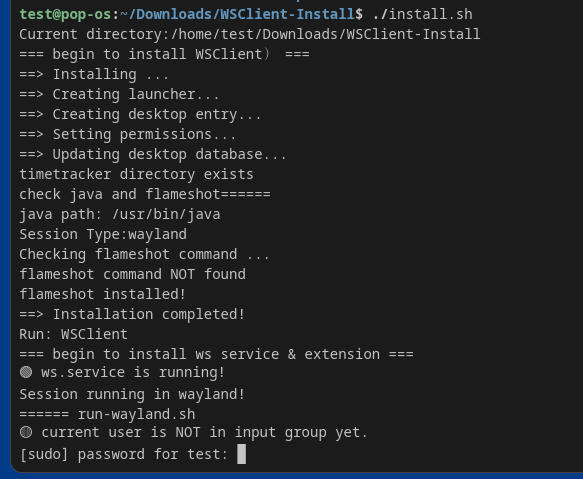
3.3 The script will start to execute the necessary installation steps.
4. Enter Current User's Password
When you see the prompt for entering the current user's password, please enter the password of the current user.
(NOTE: This is for adding the current user to the INPUT group for Wayland support.)
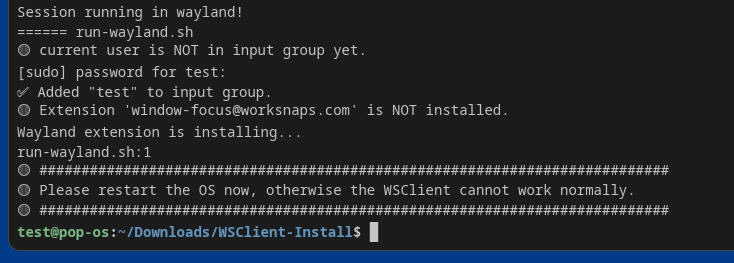
5. Restart the OS after Installation
Please reboot the OS after installation completes (this is important).
(To support Wayland, we have installed an extension. In order for the extension to take effect, you need to restart the OS.)
6. Please Launch WSClient from Application Menu
You can find the WSClient icon in the Application menu. You can launch Worksnaps Client by clicking the icon.
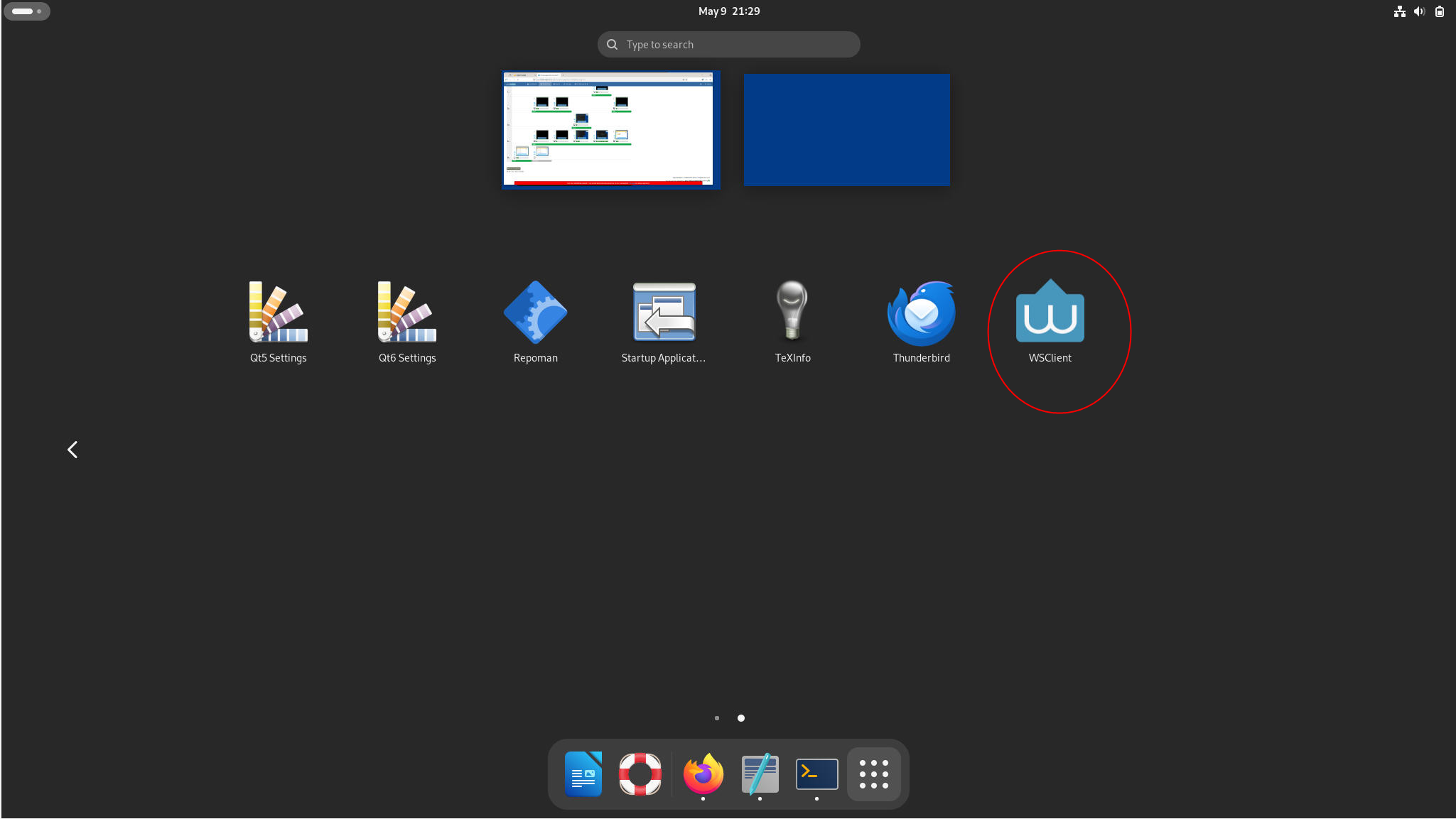
If the application cannot be launched from application menu as described above, please execute run.sh under $home/WSClient folder to launch it.
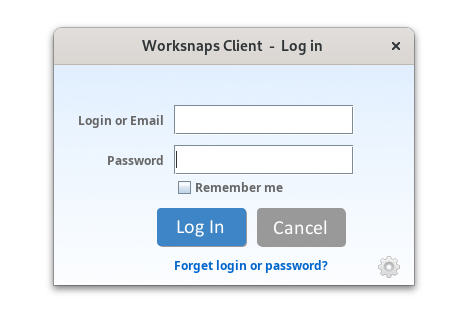
If the application is launched successfully, you will see the following Log-in dialog.