
NOTE This document has been superseded by a newer document. Please use this instead: https://worksnaps.freshdesk.com/a/solutions/articles/4000231159 |
Here is an instruction on how to install Worksnaps Client on Mac computers. This article supersedes articles related to this topic published prior to June 1, 2026.
1. Determine whether your Mac is using Apple M chip or Intel chip.
Open the Apple menu and select "About This Mac".
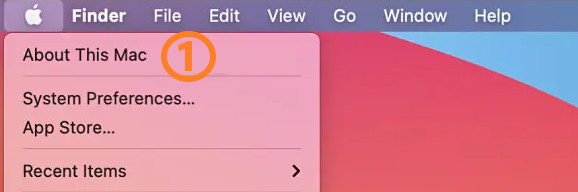
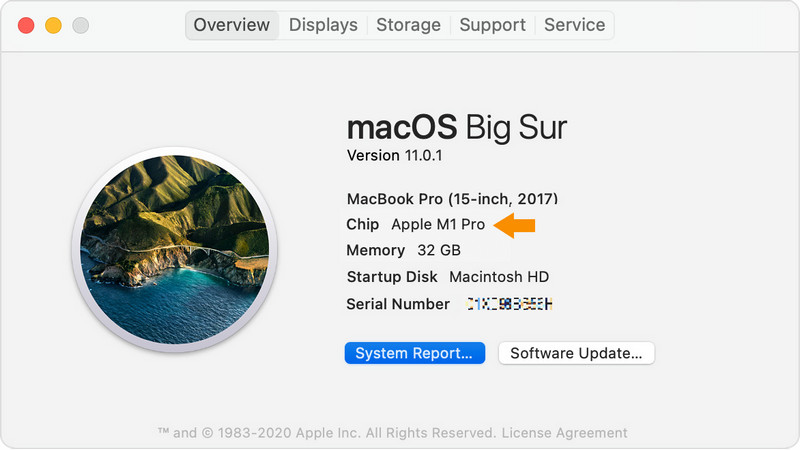
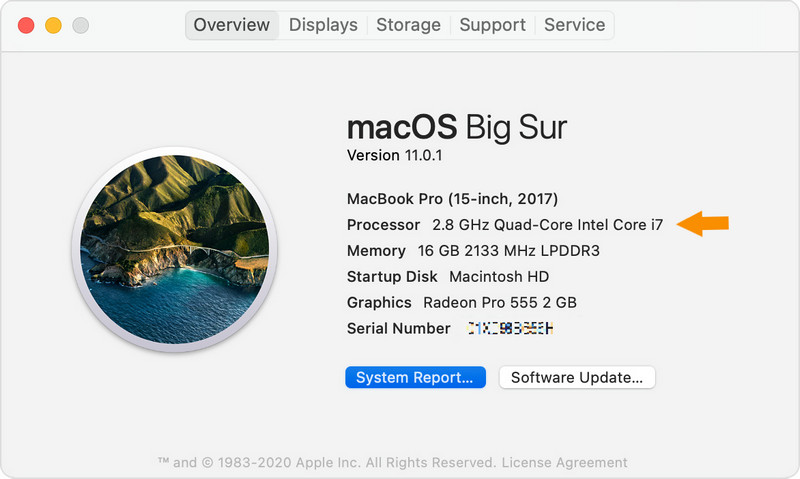
You will see a dialog box where you can look for Processor type. It will show whether your computer is using Intel chip or Apple M chip (also known as ARM chip).
Here is an example of Mac using Apple M chip (i.e., ARM chip):
Here is an example of Mac using Intel chip:
In general, the Mac computers released after 2019 are using Apple M chip (i.e., ARM chip). Those using Intel chip are older models.
2. Install Oracle Java on your Mac computer based on the processor type.
Open the following link in your browser -- https://www.oracle.com/java/technologies/downloads/#jdk26-mac
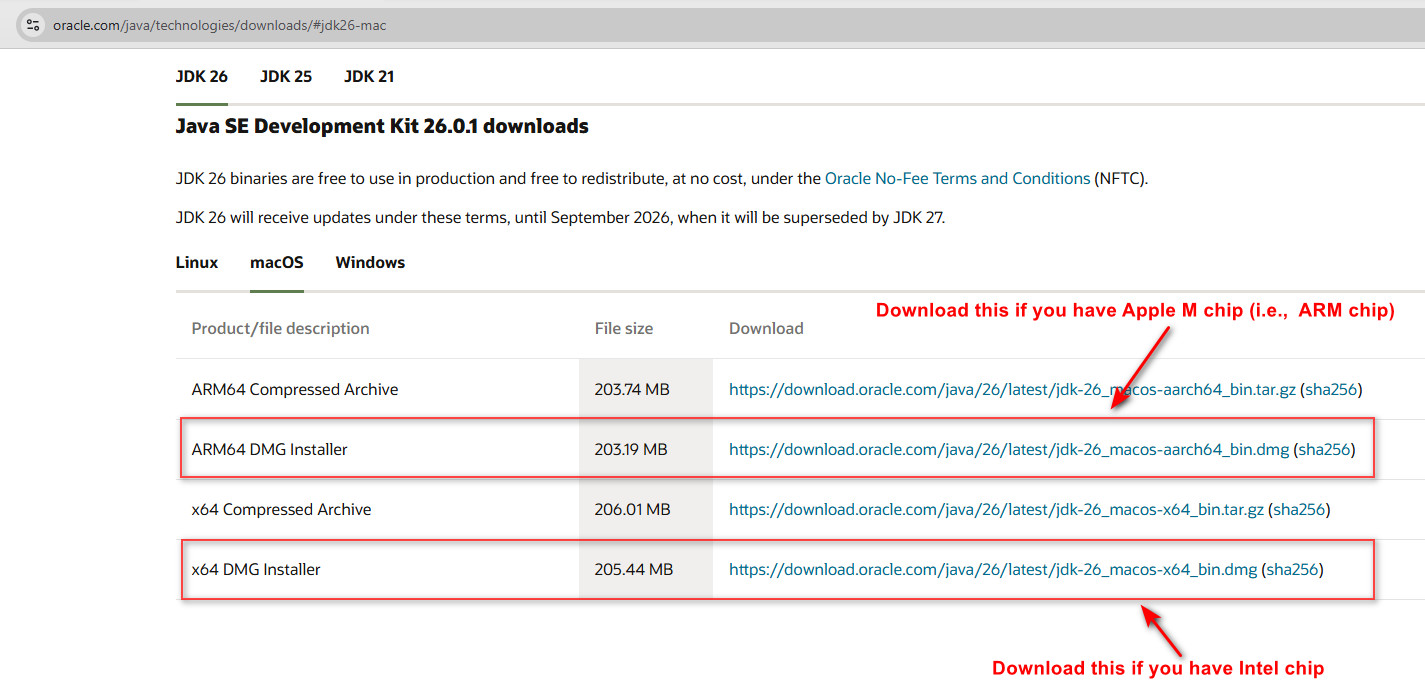
This is the page where you can download and install the Oracle Java onto your Mac computer.
You need to select a link that matches your processor type.
If you have Apple M chip (i.e., ARM chip), please select the download link labeled "ARM64 DMG Installer"
If you have Intel chip. please select the download link labeled "x64 DMG Installer".
Once you have download the installer, install it onto your computer.
3. Install Worksnaps Client onto your Mac.
If your Mac has Apple M chip (i.e., ARM chip), please download Worksnaps Client from this link:
https://s3.amazonaws.com/worksnaps-download/WSClient-Mac-aarch64-1.1.20260520.dmg
If your Mac has Intel chip, please download Worksnaps Client from this link:
https://s3.amazonaws.com/worksnaps-download/WSClient-Mac-x64-1.1.20260520.dmg
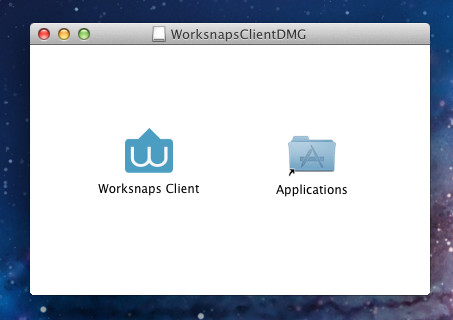
Install the package onto your computer by dragging Worksnaps Client icon and drop it into Applications folder.
4. Start Worksnaps Client.
In Applications menu, find Worksnaps Client and click to start it.
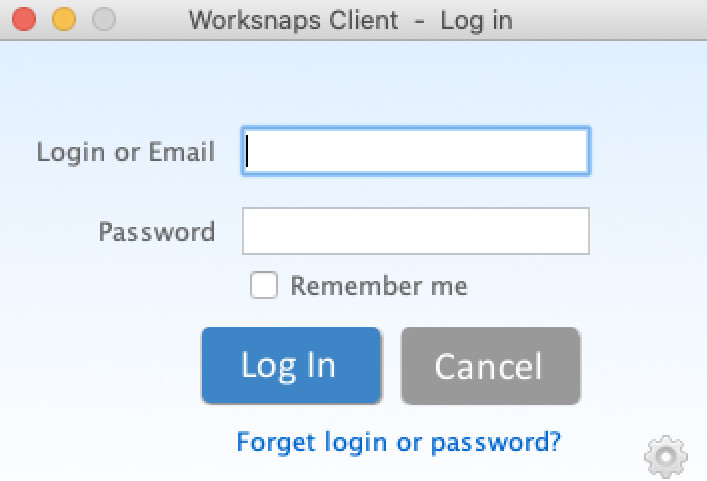
If you see the following Log-In dialog, Worksnaps Cient is started successfully.
Trouble shooting when starting Worksnaps Client
If you encountered Worksnaps Client Crash or see an error message "Unable to load Java Environment" or "JRELoad Error", it is likely that you have an older version of Java on your computer. Please open a Terminal window and run the following commands to remove the older Java environment from the computer:
sudo rm -fr /Library/Internet\ Plug-Ins/JavaAppletPlugin.plugin
sudo rm -fr /Library/PreferencePanes/JavaControlPanel.prefPane
sudo rm -fr ~/Library/Application\ Support/Oracle/Java
Then you can try to start Worksnaps Client again.
5. Turn on Screen Recording, Accessibility and Camera for Worksnaps Client.
In order for Worksnaps Client to capture the necessary information, you need to turn on Screen Recording, Accessibility and optionally Camera in "System Preferences".
Here is the instruction on how to make necessary configuration changes.
(link - https://worksnaps.freshdesk.com/support/solutions/articles/4000216858)