To install Worksnaps Client 2.0, please download the installation package from the download page (https://www.worksnaps.com/www/download.shtml).
Once the installation package is downloaded, find the file on your computer, double click to launch the installation.
If you see a Windows SmartScreen dialog, please click "More Info" link, then click "Run Anyway" button.
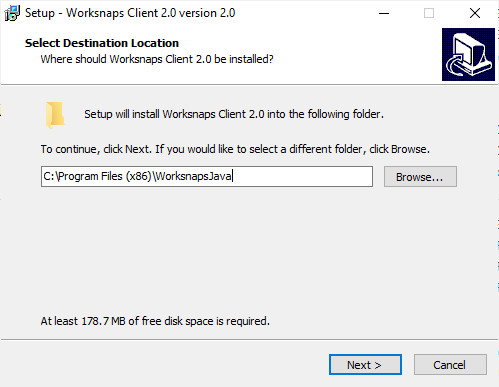
A installation wizard will guide you through the installation, just follow the steps to complete the installation.
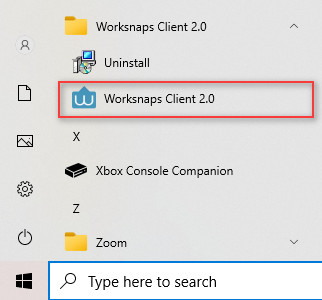
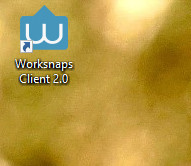
Once the installation finishes, you should be able to launch Worksnaps Client 2.0 from Windows menu or Deskstop shortcut.
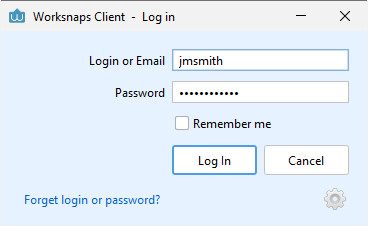
After you start Worksnaps Client 2.0, you will see this log in dialog. You can use your credentials to log in.
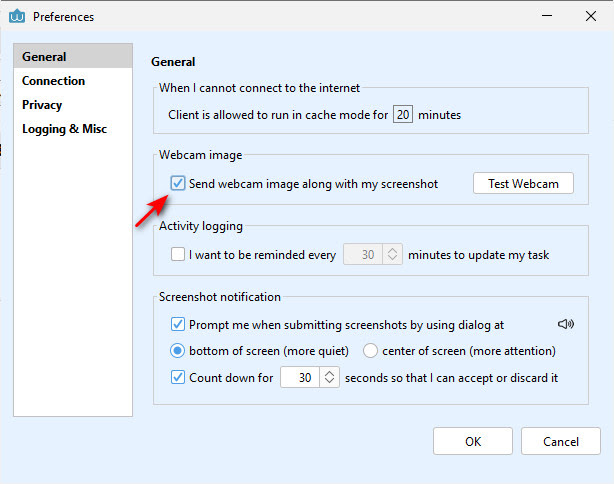
Note: If you upgrade from a previous version of Worksnaps Client and you were using webcam capturing, please open the "Preferences" dialog box and check "Send webcam image along with my screenshot" to initialize the default camera. Then you can click "OK" button to close the dialog.