Here is an instruction on how to install Worksnaps Client on Mac computers.
1. Download Worksnaps Client
Download the Worksnaps Client installation package from the download page:
https://www.worksnaps.com/www/download.shtml
2. Install Worksnaps Client
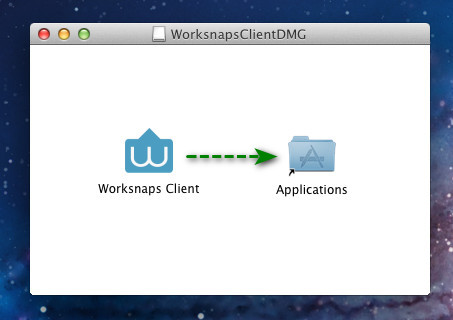
Install the package onto your computer by dragging Worksnaps Client icon and drop it into Applications folder.
3. Start Worksnaps Client
In Applications folder, find Worksnaps Client and click to start it.
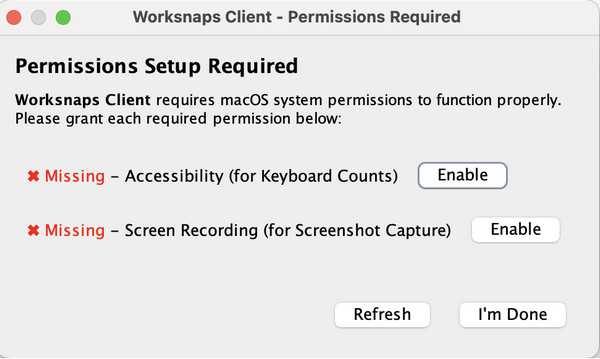
Worksnaps Client requires "Accessibility" and "Screen Recording" to be turned on in "Security & Permissions".
If one of those permissions is not turned on on your computer, you will see the following dialog.
You can just click "Enable" button to turn on each of the permissions. Once you have finished, click "I'm Done" to proceed.
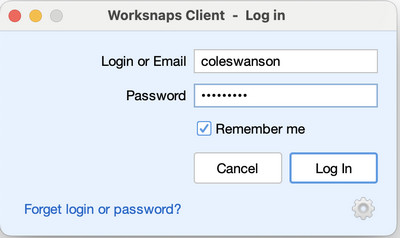
You will see the Log-in dialog, just enter your username and password to log in.