Newer Linux distributions now default to Wayland. Due to Wayland’s security policies, the old Worksnaps Client approach no longer works properly under Wayland. The new Worksnaps Client for Wayland uses a service and an extension, which makes installation a bit more involved than before.
1. Download the latest WSClient Wayland package.
Unzip WSClient installation package, such as unzip to ~/Download/WSClient-Install/.
If your computer installed old WSClient package, please execute uninstall.sh to remove it.
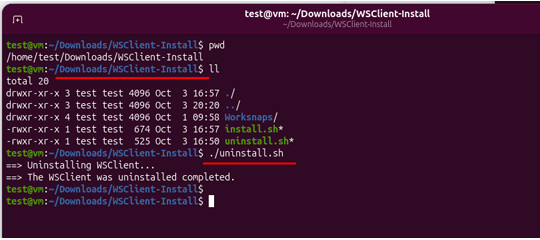
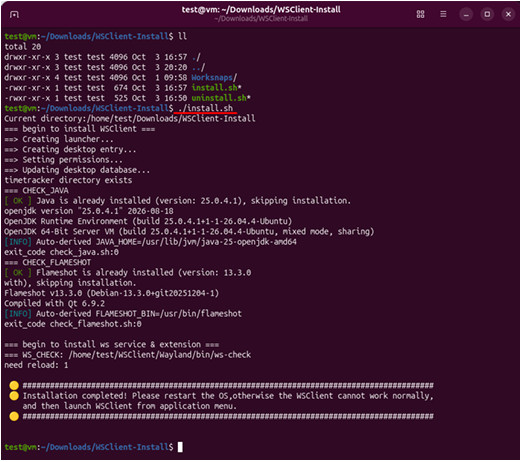
2. Install WSClient package.
Please execute install.sh to install WSClient.
If you are installing the WSClient Wayland package on your computer for the first time, you need to reboot the operating system before it can run properly.
If it is an upgrade installation, a reboot is not required (although reboot is recommended).
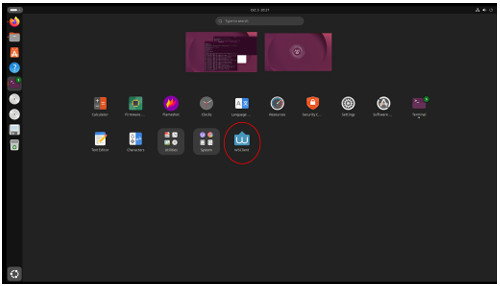
3. Launch WSClient
You can launch WSClient from application menu or start it using shell command "~/WSClient/run.sh".
Troubleshooting for WS Service and Extension
If the WSClient cannot be launched normally, please check the WS service and extension status.
After WSClient is installed, the WS Service and extension will start automatically. If they do not start, please start them manually.
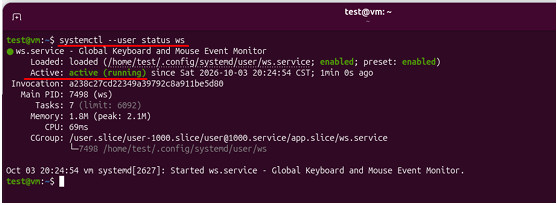
Check WS service status:
$ systemctl --user status ws
Start WS service:
$ systemctl --user start ws
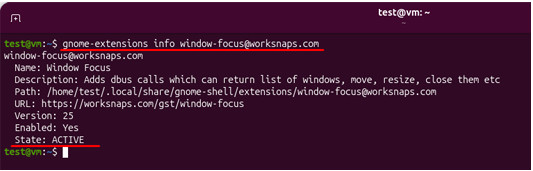
Check WS extension status:
$ gnome-extensions info window-focus@worksnaps.com
Start WS extension:
$ gnome-extensions enable window-focus@worksnaps.com